You can now import the statement file from your bank, and Sliptree matches the payments in it to your unpaid invoices. A payment with the invoice's reference number marks the invoice as paid without a click from you, so checking who has paid takes minutes instead of an afternoon. Read more about importing bank statements.
Everything about payments is under Payments
The main navigation has a new Payments section with three tabs: Unmatched, Transactions and Bank statements. The number next to Payments counts the bank lines that are still waiting for you, so you see at a glance when there is something to match.
Import the statement file from your bank
On any tab under Payments, click Import statement and choose the file. Sliptree reads the XML statement (camt.053 or camt.052) that most banks offer, as well as CSV and Excel files from your bank's statement page. If your bank offers both, choose XML, because it carries the payment reference numbers that make matching more accurate. With a CSV file, the Match columns step first lets you check which column holds the date, the amount and the payer.
Where it can, Sliptree detects the account from the account number in the file. When that account is not in Sliptree yet, the New bank account step shows its details from the statement, and Create account and continue adds it. If the file has no account number, you choose the account yourself. Importing the same statement twice is safe, because lines that are already in Sliptree are skipped.
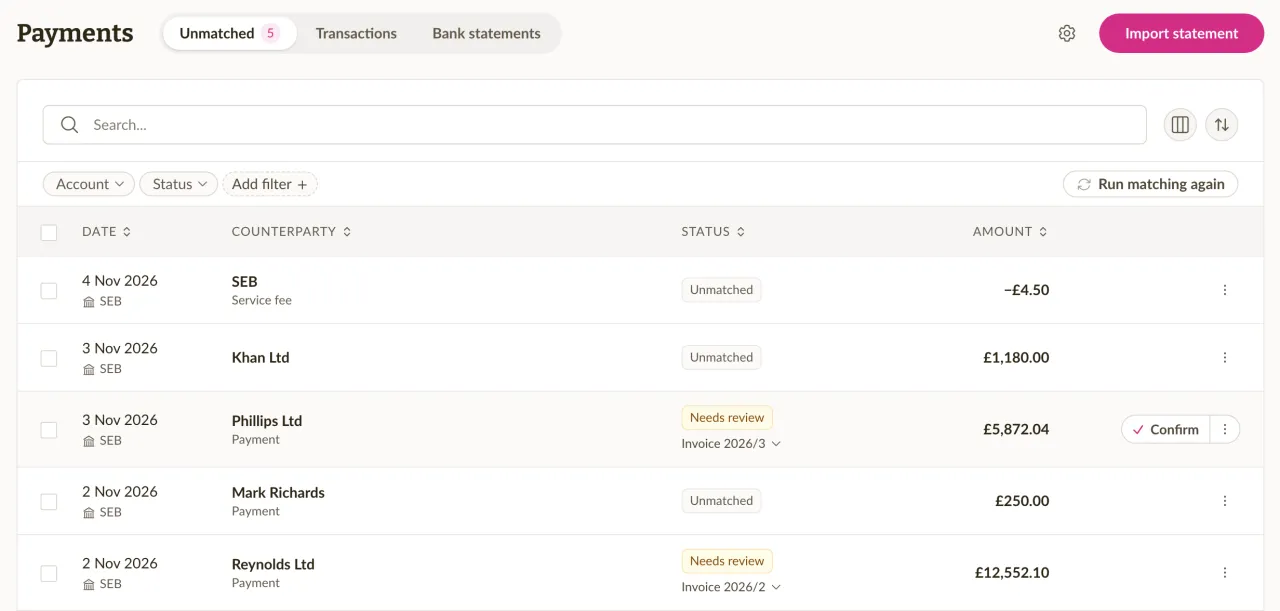
Payments are matched to invoices as soon as you import
When a payment's reference number or invoice number points to an unpaid invoice, Sliptree records the payment on that invoice straight away, and the invoice becomes paid, or partly paid if the amount was smaller. When it finds a likely invoice by other means, such as the amount and the payer's name, the line gets the status Needs review. Click Confirm on the row if the suggestion is right, or tick several lines and click Confirm suggestions.
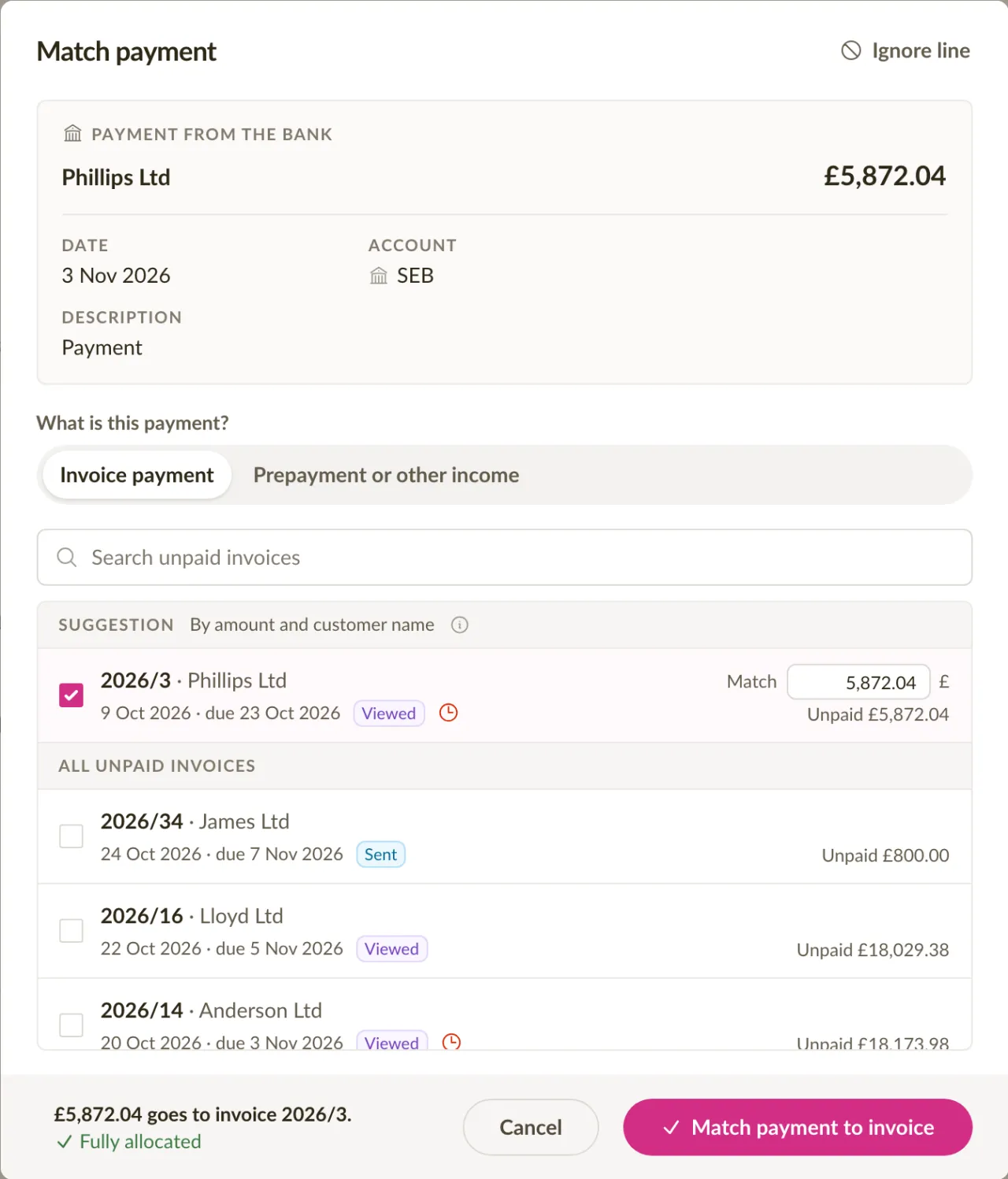
Every other line waits on the Unmatched tab. Click Match on its row and tick the invoice it pays, or several invoices when one payment covers more than one of them. If the payment is larger than the invoices, the rest becomes the customer's credit, which you can use on their next invoice. After you match, the message at the bottom of the screen offers Undo, in case you picked the wrong line. Read more about matching bank payments.
Payments without an invoice, and money going out
Not every line on a statement pays an invoice. In the match dialog, Prepayment or other income records a customer's advance payment as their credit, or, without a customer, as other income. Lines that need no matching at all, such as bank fees or transfers between your own accounts, can be put aside with Ignore.
Money leaving your account is matched to credit notes, so a refund you paid to a customer is recorded on the credit note it belongs to. Choose Refund against a credit note in the match dialog, or Refund or other outgoing payment when there is no credit note.
A payment you already recorded by hand
Sometimes a payment you already recorded on an invoice by hand is also on a bank statement you import. Sliptree then finds the payment you recorded by its amount and date and links the bank line to it, or suggests it, so the payment is not counted twice. You can also link them yourself with Payment you recorded earlier in the match dialog, and the payment then takes the date and account from the bank.
Matching from the invoice page
You can also match a bank payment from the invoice page. When an unmatched payment from the bank looks like it pays the invoice, the Add payment panel says so above the form, and Match records it in a few clicks.
Fixes and improvements
- On the invoice page, the payments are now listed in the panel beside the document, above the activity. Before, you had to open them with Manage payments.
- When you delete an imported statement on the Bank statements tab (open the row's menu, then Delete statement), its unmatched and ignored lines are removed. Lines that are already matched stay, so no invoice changes unless you choose to remove those too.