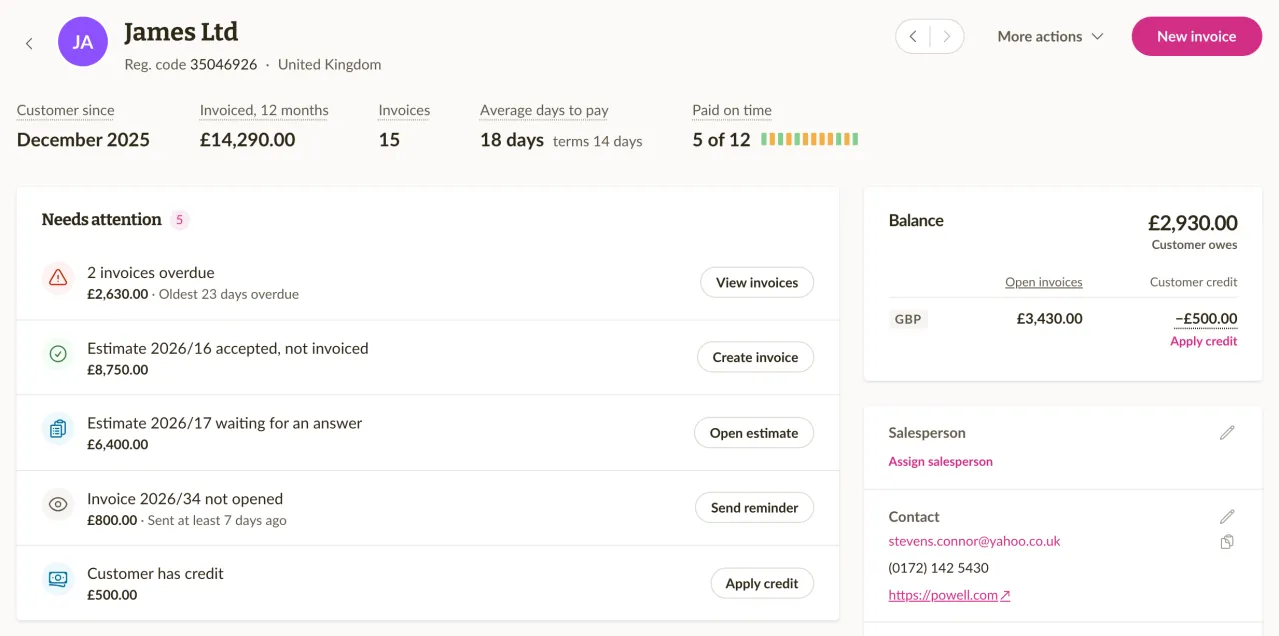
The customer page has a new design that shows at a glance where you stand with a customer: what needs doing, what they owe, and every invoice, estimate and payment of theirs. You also change the customer's details right there, one section at a time. Read more about the customer page.
What needs your attention, at the top
The Needs attention card lists what is waiting for you or for the customer. That can be an overdue invoice, an invoice the customer has not opened a week after you sent it, or an accepted estimate with no invoice yet. Each row has one action, for example Send reminder on an overdue invoice, or Create invoice on an accepted estimate. When everything is in order, the card says so.
Above it, a row of facts sums up the customer, such as how much you invoiced them in the last 12 months and how many days they take to pay on average. Point at a label to see what it counts. Next to it, the Balance card shows what the customer owes and their credit.
The customer's documents in tabs
The tabs Invoices, Estimates, Recurring and Payments show the customer's latest documents and payments, with a link to the full list filtered to this customer. A row in Needs attention that covers several documents opens the right tab, already filtered, for example to the overdue invoices.
Activity and comments about the customer
The Activity tab gathers what happened with the customer in one feed: invoices sent, opened and paid, estimates accepted, changes to the customer's details and more. You can also write a comment about the customer there, and only your team can see it.
A comment can be pinned with Pin to top, and it then shows as the Pinned note at the top of the page. It is a good place for something everyone should see first, such as "Send invoices to the accountant, not the CEO".
Edit one section at a time
The customer's details are now in the panel at the side of the page, grouped into sections such as Contact, Address and Document settings. Each section has its own edit button that opens a short form for just those fields, instead of a separate edit page for everything. An empty field shows a link to fill it in, such as Add email or Add address.
If the customer has a registry code from a country whose business register Sliptree can look up, the Legal and bank section also offers Update from business registry. Sliptree compares the saved details with the register and lists every difference, and you untick what you want to keep before you save. Documents you already sent keep the details they were sent with.
Fixes and improvements
- If your invoice reference numbers are based on the customer (Customer-based under Invoice reference numbers in Business settings), the customer page shows the customer's reference number with a copy button. In the customer list it has its own Reference number column and filter, and the search finds a customer by it too.
- Browser tabs now name what the page shows first, such as the invoice number and the customer, so you can tell several open tabs apart.
- On the customer page, the arrows next to the actions move to the previous or the next customer.
- In the Activity of an invoice or estimate, an edit now shows each changed field with its old and its new value. The entries of each day now sit under a heading with the date.