
You can now sign in to Sliptree with a passkey or with your Google account, so there is one less password to remember and type. In Estonia, Latvia and Lithuania you can also sign up with Smart-ID, Mobile-ID or an ID card, and use them to get back into your account when nothing else works.
Sign in with a passkey
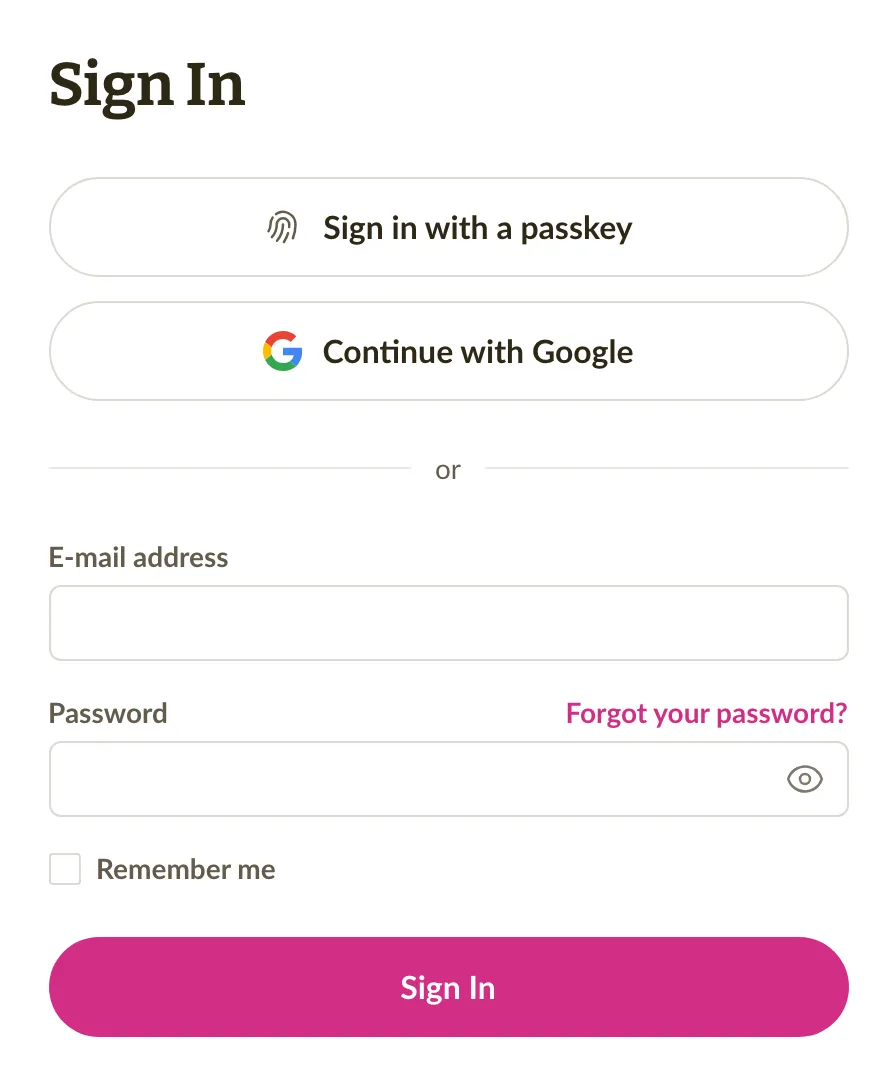
A passkey uses your device's fingerprint, face or PIN instead of a password, and a fake website cannot trick you into giving it away. On the sign-in page, click Sign in with a passkey, or pick your passkey from the suggestions that appear in the email field. If you use two-factor authentication, a passkey sign-in needs no code, because the passkey on your device already is the second step.
After you sign in with a password, Sliptree offers to add a passkey, and you can also add one at any time in your Profile. The new Sign-in section there lists your passkeys and holds the password form too. Read more about your profile and account security.
Sign in or sign up with Google
Continue with Google is now on the sign-in and sign-up pages, so you can sign in with your Google account or create a new Sliptree account with it. If your Sliptree account uses the same Gmail or Google Workspace address, Google signs you straight into it. To use a Google account with a different address, connect it in the Sign-in section of your Profile.
Sliptree now emails you when a passkey is added or removed, when Google is connected or disconnected, and when an ID code is linked to your account, so you notice a change you did not make.
Smart-ID, Mobile-ID and ID card in Estonia, Latvia and Lithuania
If you are in one of the three Baltic countries, or use Sliptree in Estonian, Latvian or Lithuanian, the sign-up page now starts with Smart-ID, Mobile-ID or ID card. You verify your identity in a window on the page and pick your company, and Sliptree fills in its details from the business register. Then you add your email address and a passkey or a password. Your identity is already verified, so when you turn on e-invoicing later, that check is done.
The same way in also helps when you cannot sign in. Below the sign-in form, click Can't sign in? and verify your identity. Your ID code is linked to your account if you signed up this way or verified your identity for e-invoicing. In that case Sliptree signs you in and asks you to add a passkey or set a new password.
Joining a company that is already on Sliptree
A company can now be in Sliptree only once. When you add a company whose registry code another account already uses, you ask that account's owner for access instead of making a second copy. If the business register says you can represent the company, click Ask for access. The owner gets an email, and if they do not answer within 7 days, you get admin rights automatically. Anyone else can click Send join request, and the owner decides. Owners see both kinds of request on the Members page. They approve or decline a join request, and they can approve an access request before its date.
Fixes and improvements
- When you verify your identity on the e-invoicing setup page or in your Profile, it now happens in a window on the same page. Before, you were sent to another site and back.
- Changing the email address in your Profile now starts with confirming it is you, for example with your password or a passkey. The new address takes effect only after you open the link Sliptree sends to it, so a typo no longer locks you out. Your old address then gets an email about the change.
- If the Estonian business register says you can represent your company only together with other board members, you can now turn on e-invoicing. You first confirm that the other board members agree.
- If you are a board member of a Latvian company but have no Latvian personal code, the e-invoicing setup can now confirm your right to represent the company. Before, the check found no right, and you could not turn on e-invoicing.
- When the customer's operator rejects an e-invoice you sent, Sliptree now emails you, with the reason if the operator gave one. Before, the rejection showed only in the document's Activity. Read more about notifications from Sliptree.
- In some countries, Sliptree still showed the previous day as today for a while after midnight. Dates and times now follow the Timezone in Business settings.
- When the totals of an invoice are taller than a page, for example with many different VAT rates, they now continue on the next page of the PDF. Before, the last rows, including Total due, were cut off.
- An invoice whose net amount is below zero but whose total is above it, for example taxed work minus an untaxed advance, now stays an invoice. Before, the invoice page turned it into a credit note. In rare cases a credit note was saved with a total above zero, and such a save is now refused with a message that says what to fix.
- When you change the status of several invoices at once (select them in the list, then Mark as...), Partially paid is no longer offered. An invoice becomes partially paid when you record a payment smaller than its total, so the status always has a payment behind it.
- When you export to a CSV file, a cell that starts with =, +, - or @ now gets an apostrophe in front, so a spreadsheet does not run it as a formula. Plain numbers and phone numbers are left as they are, and importing the file again removes the apostrophe.
- When you import customers or products, spaces around values are now removed. A column that holds the same value as another one, such as a city and a note that both say "Tallinn", is no longer lost. With Update existing, an empty cell now always keeps the value already saved.
- While you type a product name on an invoice line, the product that starts with what you typed is now highlighted, so Tab or Enter picks the one you meant. Before, the highlight could stay on the first product in the list.
- On a phone, the full-screen preview of an invoice, estimate or recurring invoice now shows its title and close button, which the top bar used to cover. On a recurring invoice, the preview also has the Preview next invoice switch, so you can see the dates as they will appear on the next invoice.
- Sliptree has a small visual refresh. Page titles and headings use a new typeface, status badges and notices have clearer colours, and the sign-in and sign-up pages have a new look.
- If your business is in Norway, your VAT number now appears on the invoices for your Sliptree subscription.